Prints & albums · keeping files safe
How to back up family photos
Hard drives wear out and download links expire. When the only copy of a newborn session sits on one laptop, a single spilled drink can take it. Living in South Louisiana, I also think about it every hurricane season. A backup routine takes an afternoon to set up and then about ten minutes a month, which is a small price for pictures nobody can take again.
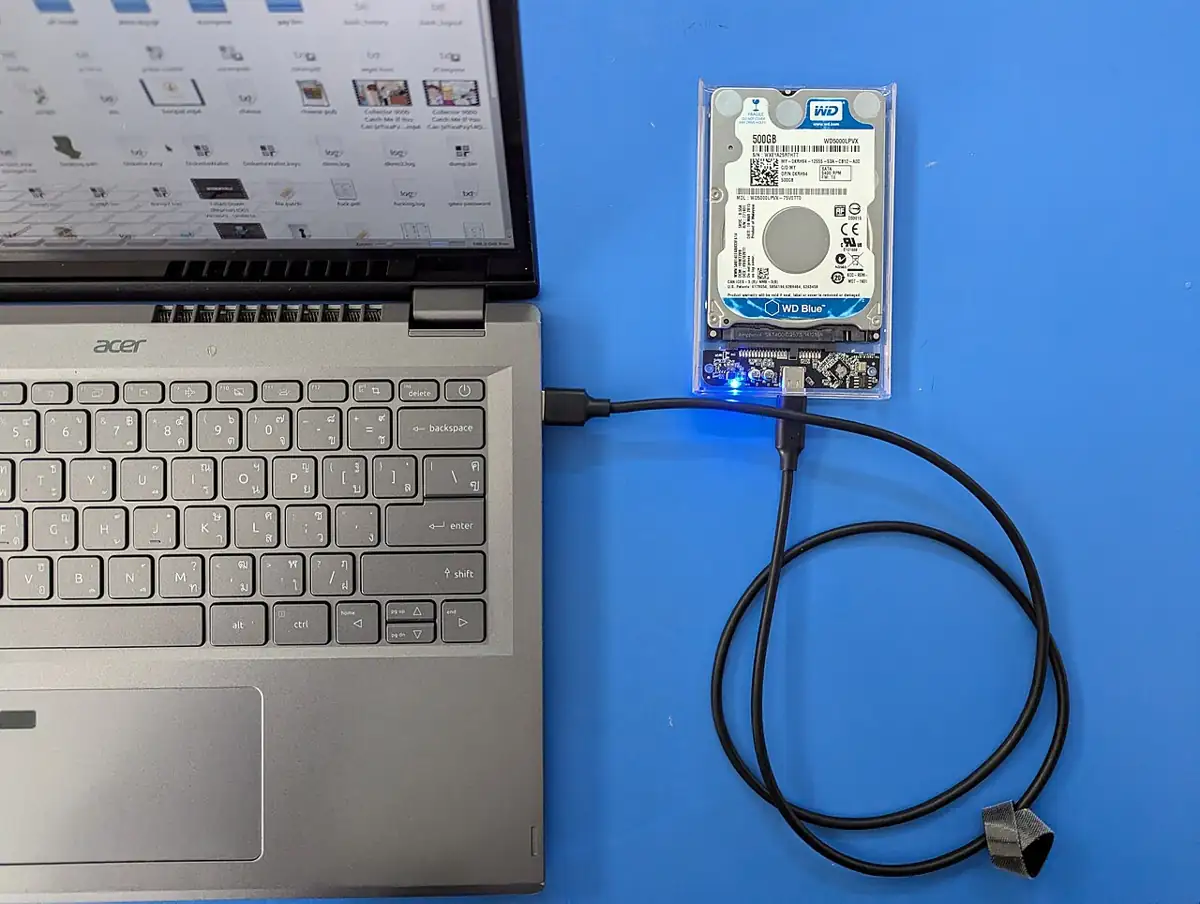
Frame 01The 3-2-1 rule
Photographers and IT departments use the same rule, and the U.S. Cybersecurity and Infrastructure Security Agency describes it in its guidance on backing up data: keep three copies of important files, on two different types of storage such as a hard drive and the cloud, with one copy stored off site. A typical family setup is the photos on a computer, a second copy on an external drive and a third in a cloud storage account. If the house floods, the cloud copy survives. If the cloud account is closed, the drive is still in a drawer.
- Three copies: the working copy on your computer counts as one.
- Two kinds of storage, so one type of failure cannot take everything.
- One copy away from home: cloud storage, or a drive kept with a relative or at work.
- A test now and then, opening files from each copy to prove they still work.
Frame 02Why one copy is not enough
Every storage device fails eventually, and laptops get stolen or knocked off tables. Cloud services change their terms and accounts get locked when a password is forgotten. In South Louisiana there is also the weather: a house that takes water in a storm can lose every device in it at once, which is why the off-site copy matters. When Hurricane Gustav was on its way in 2008 I spent the day preparing the house and taping windows, and the days before a storm are no time to start sorting out photo files. After Katrina we were without power for four days, and an external drive is no use without electricity to read it. More on storm season is in the guide to local weather and light.
Frame 03Where to keep the copies
| Storage | Good for | Watch out for |
|---|---|---|
| Computer | Your everyday working copy | Theft, spills, failing drives |
| External hard drive or SSD | A fast, cheap second copy | Kept in the same house; can fail without warning |
| Cloud storage | The automatic off-site copy | Account lockouts, plan changes, closed services |
| Second drive at a relative's | Off site without a subscription | Only as current as your last visit |
| Prints and albums | A copy that needs no device | Fading in sun, damp and heat |
Phone photos synced to a cloud account count as one copy. If you delete a picture on the phone, many services delete it from the cloud too.
Frame 04Setting it up once
- Create one main folder for family photos on your computer.
- Inside it, make a folder per year, and inside those, folders named by date and event, for example 2026-05 newborn session.
- Download every professional gallery as soon as it arrives. Delivery links often expire, much like proof galleries do.
- Give the best files descriptive names and add the names of the people in them, so they can still be found in thirty years.
- Buy an external drive with plenty of space and copy the whole main folder to it.
- Choose a cloud service and let it sync the main folder automatically.
- Write a short note in the main folder explaining how it is organized, for whoever inherits it.
The Library of Congress gives very similar advice in its guide to keeping personal digital photographs: at least two copies, stored as far apart as practical, with descriptive file names.
Frame 05A ten-minute monthly routine
Once a month, move the month's phone pictures into the right folder and delete the obvious duplicates and blurry frames. Plug in the external drive and copy across anything new. Open three or four random files from older years on each copy to check they still open. If something has gone wrong, you find out while the other copies are still fine.
Write the date of the last check on a sticky note on the drive. It is the easiest way to notice when the routine has slipped.
Once a year, and every few years
Once a year, check that you can still open your oldest files. Every five years or so, or sooner if a drive starts making noises, copy everything to new media; the Library of Congress suggests refreshing copies on about that schedule. Think how hard it already is to find a computer that reads a DVD.
Frame 06Hurricane season habits
- Before June, make sure the cloud copy is complete and up to date.
- If a storm is coming, put the external drive in a zip bag with your important papers and take it if you evacuate.
- Keep your cloud password somewhere you can reach without your home computer.
- If you have to leave in a hurry, the cloud copy is the one you do not have to carry, so check it is current before every storm.
- After a storm, check the drive and computer before assuming they are fine; heat and humidity during a long power cut are hard on electronics.
Frame 07Backing up while traveling
I never go on a longer trip without a camera, and with family in Sweden that means a lot of flying with memory cards full of pictures. Vacations are when photos are most at risk: cards get lost, laptops get left in seat pockets, and there is no home drive to copy to.
- Carry more small memory cards rather than one huge one, so losing one costs you a day of pictures.
- Each evening, copy the day's cards to a laptop or a small portable drive, and keep that drive in a different bag from the cards.
- Upload a few favorites to cloud storage when you have good wifi, as an off-site copy on the road.
- Do not format a card until its pictures exist in two other places.
For packing the gear itself, I wrote about traveling safely with camera equipment.
Frame 08What to keep from a professional session
Keep the full resolution files exactly as delivered, plus any print release or license that came with them. If you bought an album, ask for the layout file. Note the photographer's name and session date in a text file inside the folder; in fifteen years it will help with reprints. If you are still deciding whether to buy files or prints, how session pricing works covers the options, and it is worth asking how long the photographer keeps their own copy; it is on my list of questions to ask before booking.
Frame 09Prints count as a backup
A good print on archival paper, kept out of the sun, outlasts most file formats and needs no software to view. Printing a small set of the best pictures each year gives you a copy that does not depend on any device. A yearly photo book or a few prints for an album or photo book does the job, and the print size reference helps pick sizes. Wall portraits count too, as long as they hang on an interior wall away from damp; canvas and wall portraits covers care. Families planning a year of milestone sessions should set up the folders before the first one. The prints and albums hub lists the rest of this section.